Keep invoice records
Maintain the invoice information required for customer billing.

Track invoices, expenses, driver pay and profitability.
Organize invoices and recorded payment information within the wider booking operation. Link commercial details with the customer and journey so the office can review the fare and payment state without relying on an unrelated spreadsheet. Payment provider features depend on the company’s configured services.
Maintain the invoice information required for customer billing.
See the recorded payment status alongside the reservation’s fare.
Keep the customer account and service information available when resolving billing questions.
After a corporate transfer, the office can review the journey’s commercial details and the associated invoice or payment record.
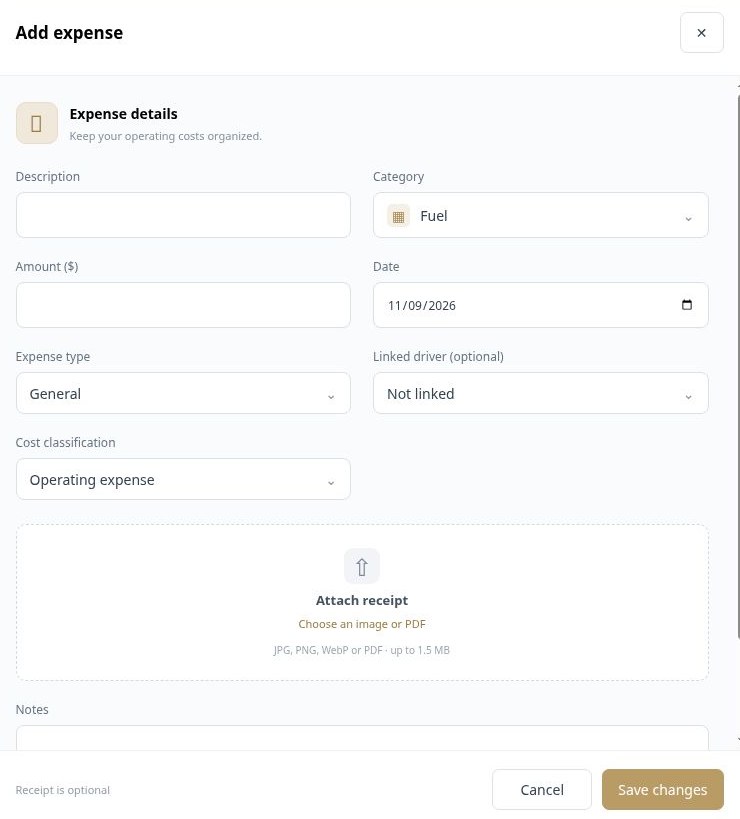
Record general operating expenses and vehicle-specific costs with a description, category, amount and date. Link a driver where appropriate, classify the cost and attach its receipt. Keeping the context with each expense helps reporting distinguish operating costs from other financial activity.
Choose the category and expense type, and connect the relevant vehicle or driver where applicable.
Attach an image or PDF receipt and add explanatory notes.
Use the cost classification so operating expenses and driver payroll payments are treated appropriately.
A fuel purchase can be recorded with its date, category, vehicle association and receipt, rather than appearing as an unexplained amount.
 Enlarge actual screen +
Configure the pay structure used for each driver and review the work behind the resulting statement. The platform includes driver pay systems, hourly calculations, tier rules and fixed salary options. External imported work has its own reporting path, helping the office account for work that did not originate as a live reservation.
Choose the driver pay system that reflects the agreed compensation structure.
Check the relevant period, journeys and pay calculations before settling the driver’s balance.
Keep payout activity separate from earned wage calculation so reports can avoid deducting payments twice.
A monthly review can bring together the driver’s applicable trip work, pay rules and recorded settlements before the office finalizes payment.
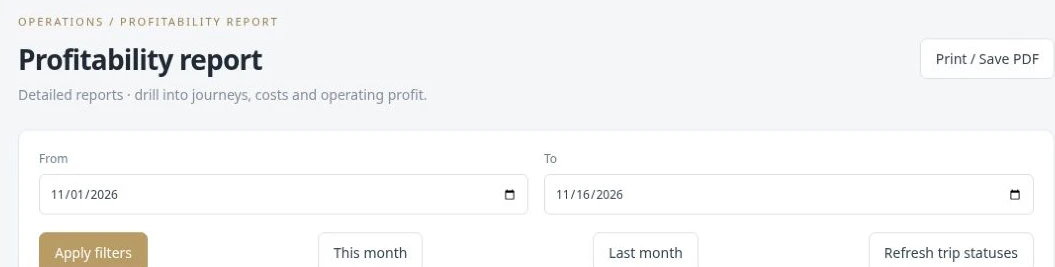
Use reports to move from individual journeys to the performance of the operation. Review driver activity, customer work, imported trips, partner income, incidents and profitability. Revenue and expense context helps the office evaluate the work being performed instead of measuring the business only by reservation count.
Open the report for the part of the operation you want to review, such as drivers, customers, partner income or imported work.
Use the report’s available date and account filters to focus on the relevant work.
Compare work, revenue and costs so unusual results can be traced back to operational records.
The office can review a reporting period to understand how driver work, partner income and operating costs contributed to the result.
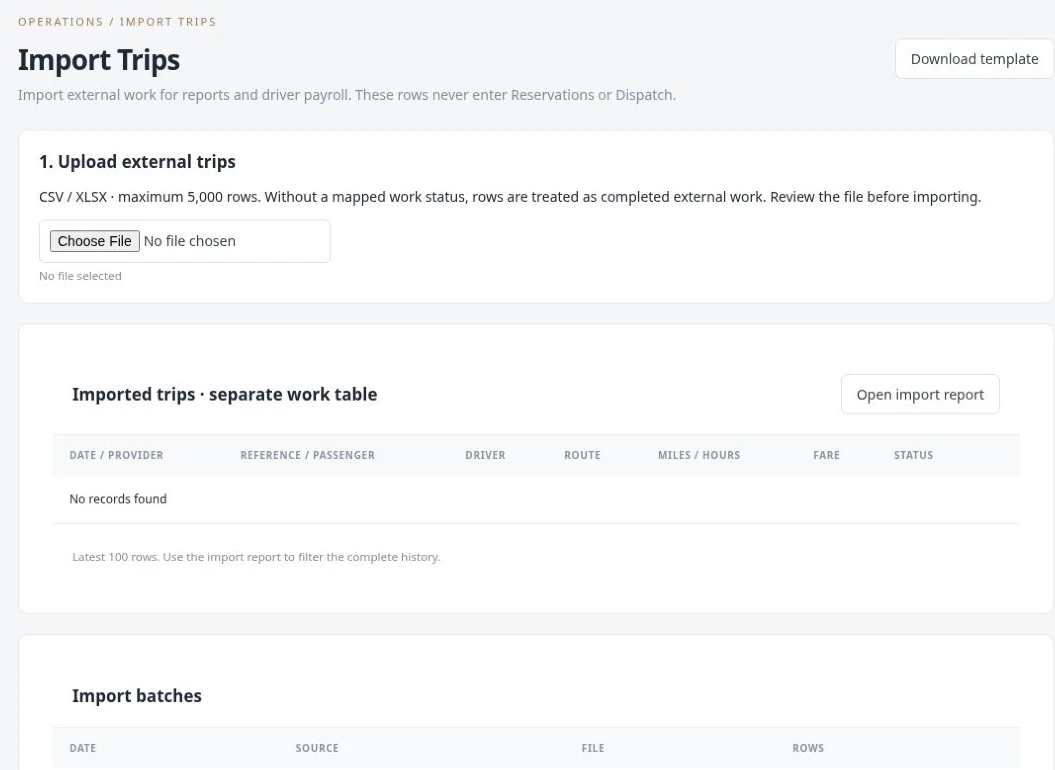
External providers may deliver completed-work records as spreadsheets. The current Import Trips workflow accepts CSV and XLSX files and keeps imported work in a separate table for reporting and driver compensation. These rows do not become live reservations and do not enter the dispatch board.
Download the template or use an external file. The upload workflow supports up to 5,000 rows per file.
Map and review the imported data, including provider, reference, driver, route, distance, hours and work status.
Review import batches and use the import report to work through the complete external-work history.
Completed trips supplied by another operator can contribute to the driver’s pay report without creating duplicate jobs on today’s dispatch board.
 Enlarge actual screen +
 Enlarge actual screen +
 Enlarge actual screen +
See what a connected workspace can do for your limousine business.