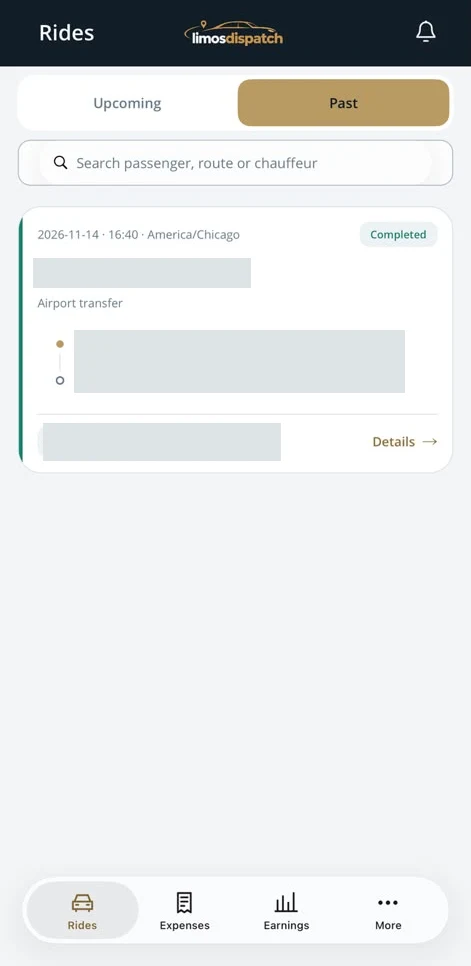
Rides
Switch between upcoming and past rides and search by passenger, route or chauffeur.

Go deeper into the tools that support your bookings, daily operation and business reporting. See what each feature does, how your team uses it and where it fits in the journey.
Actual app screens. Tap any image to enlarge it.
Switch between upcoming and past rides and search by passenger, route or chauffeur.
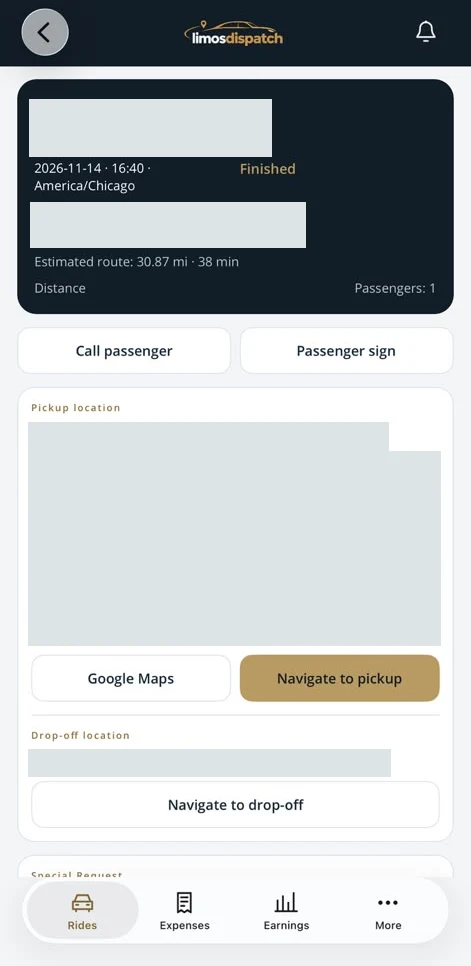
Open pickup and drop-off directions and access passenger calling and signature controls.
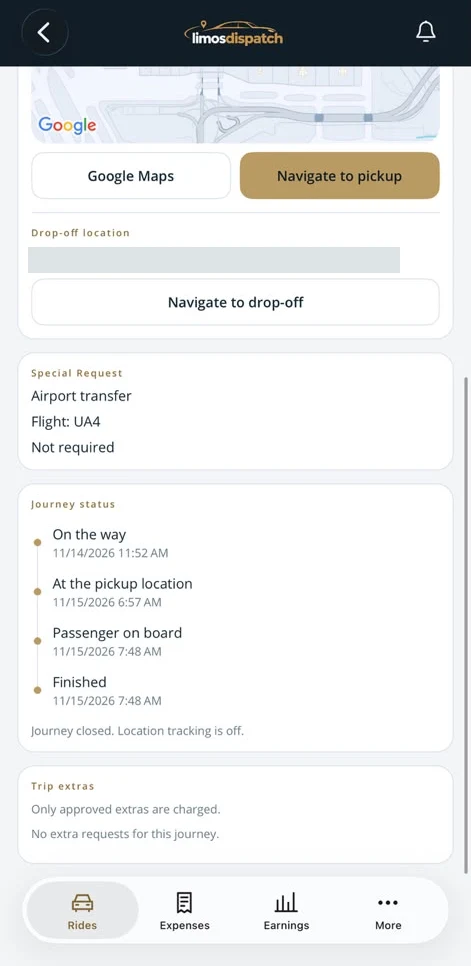
Review timestamps for departure, arrival at pickup, passenger onboard and trip completion.
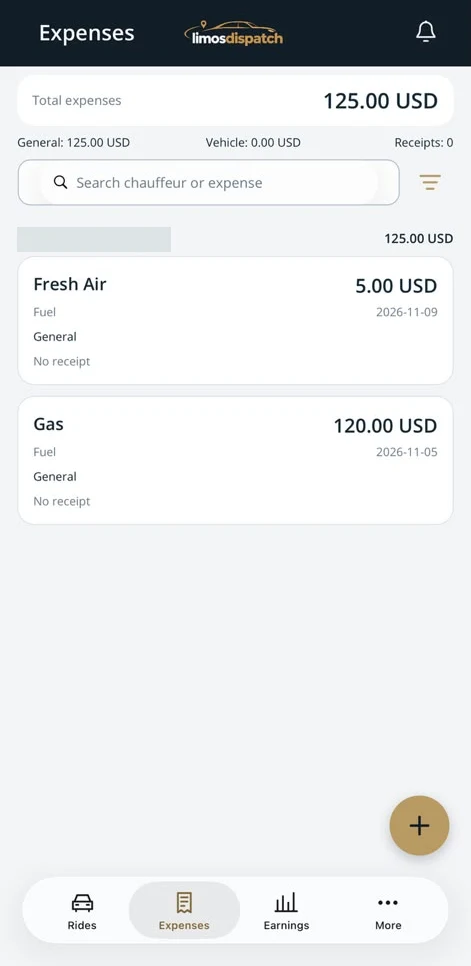
Review totals and receipts, search entries and filter expenses.
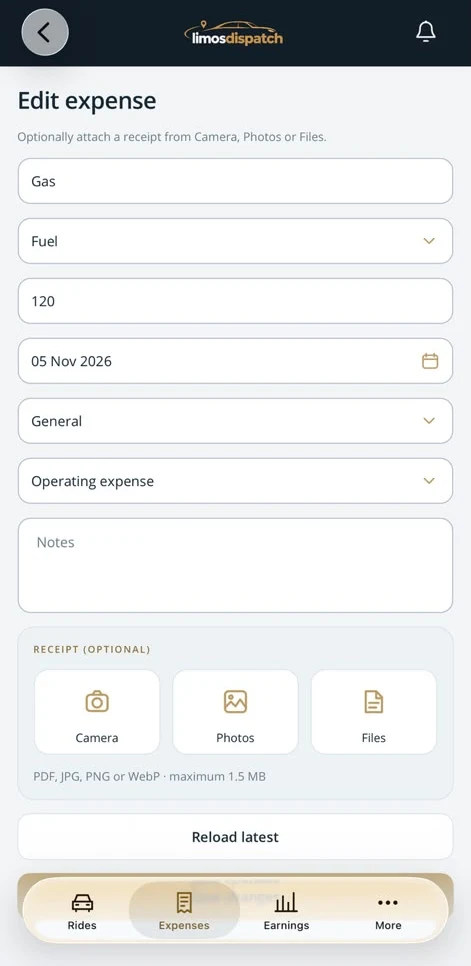
Classify an expense and attach an optional receipt from Camera, Photos or Files.
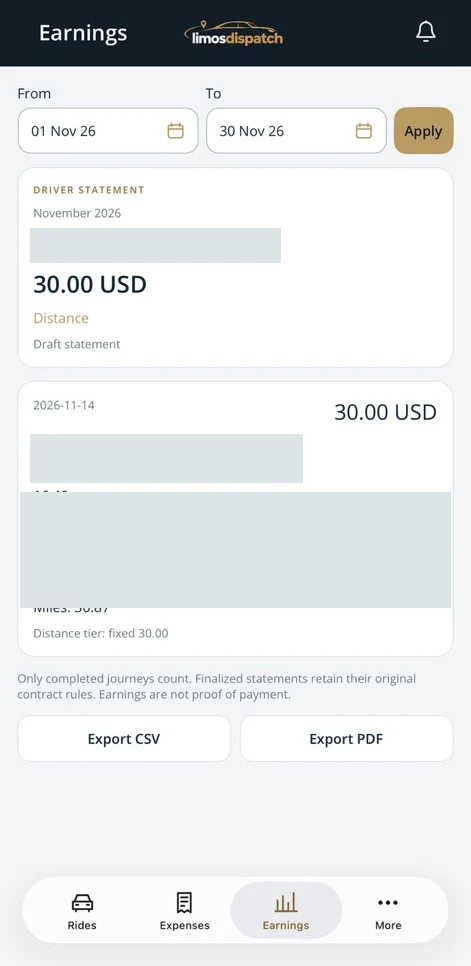
Filter statements by date, review earnings from completed trips and export CSV or PDF.
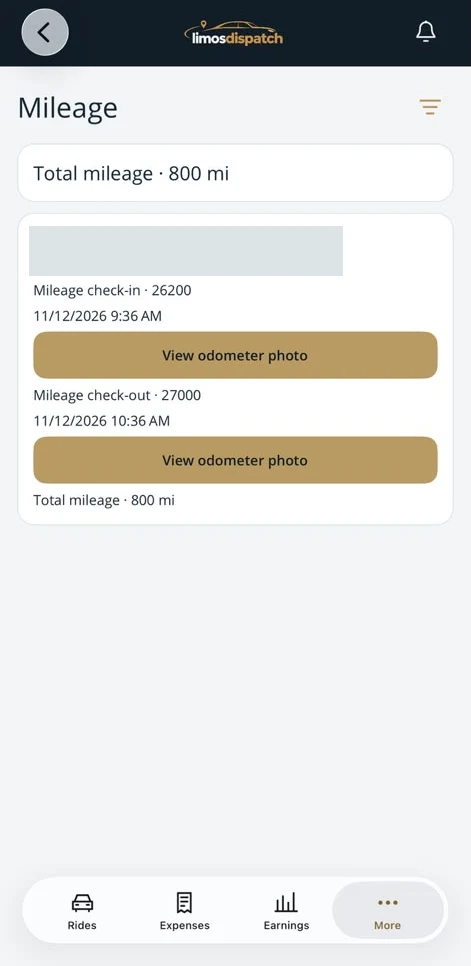
Compare check-in and check-out odometer readings, open their photos and review total mileage.
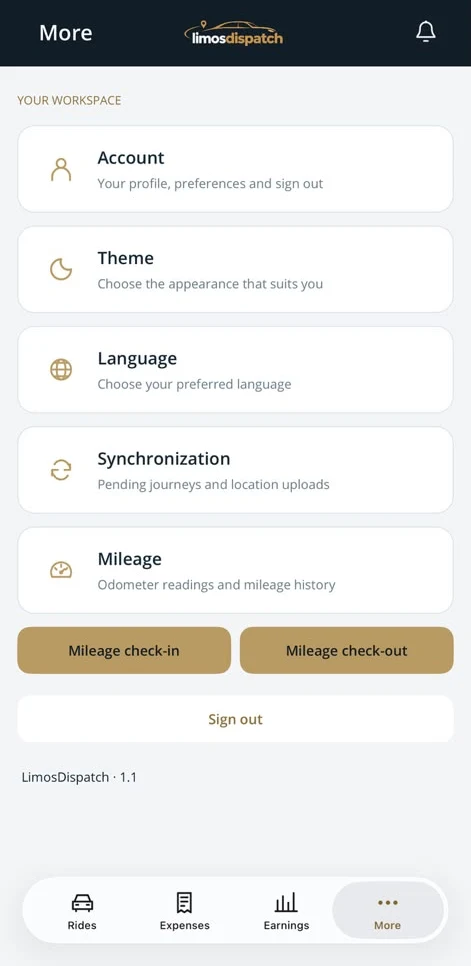
Open mileage check-in and check-out, review pending sync uploads, and adjust language and appearance.
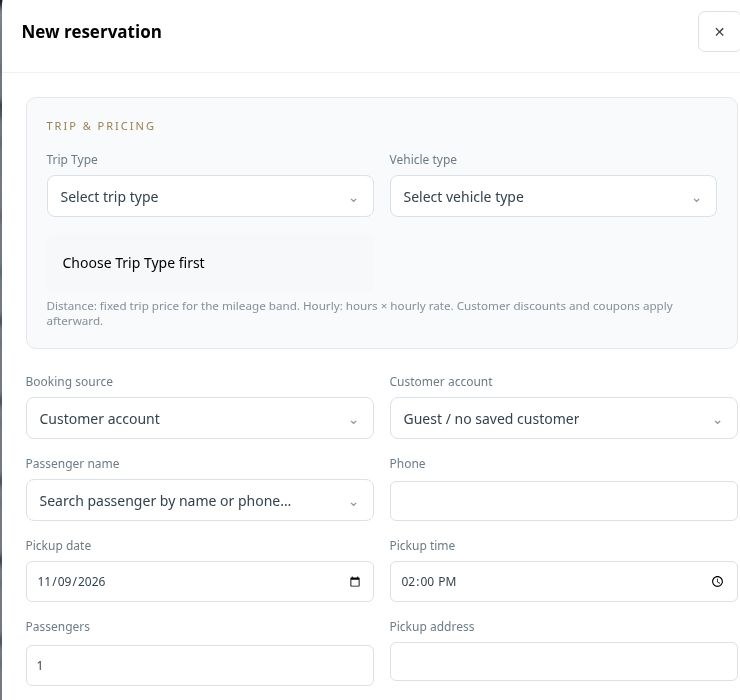
Keep the details your team needs together from the first inquiry: the passenger, booking source, pickup time, route, service type and special instructions. LimosDispatch supports distance and hourly journeys, so dispatch can work from a clear reservation rather than piecing together messages and spreadsheets.
Choose the trip and vehicle type, record the pickup date and time, and add the route, passenger count and optional flight number.
Link a customer account, capture special notes and record child-seat requirements so important instructions travel with the booking.
Assign a chauffeur and vehicle, review pricing and payment information, and keep quotes organized before the trip is confirmed.
An airport booking can hold the flight number, passenger count, pickup location and child-seat request in the same reservation your dispatcher assigns.
 Enlarge actual screen +
Give visitors a booking form connected to your operation. Collect the information needed for a journey at the point of inquiry, rather than asking your team to retype every detail from a generic contact email. Website booking settings help connect the form with the company’s reservation process.
Capture the service, pickup information and passenger details through a booking form.
Use the website booking configuration and integration with your selected company website.
Bring the request into the booking workflow, then confirm details and assign the appropriate resources.
A visitor requesting an airport transfer supplies the journey information through the booking form. Your team can review the request before allocating a vehicle.
External providers may deliver completed-work records as spreadsheets. The current Import Trips workflow accepts CSV and XLSX files and keeps imported work in a separate table for reporting and driver compensation. These rows do not become live reservations and do not enter the dispatch board.
Download the template or use an external file. The upload workflow supports up to 5,000 rows per file.
Map and review the imported data, including provider, reference, driver, route, distance, hours and work status.
Review import batches and use the import report to work through the complete external-work history.
Completed trips supplied by another operator can contribute to the driver’s pay report without creating duplicate jobs on today’s dispatch board.
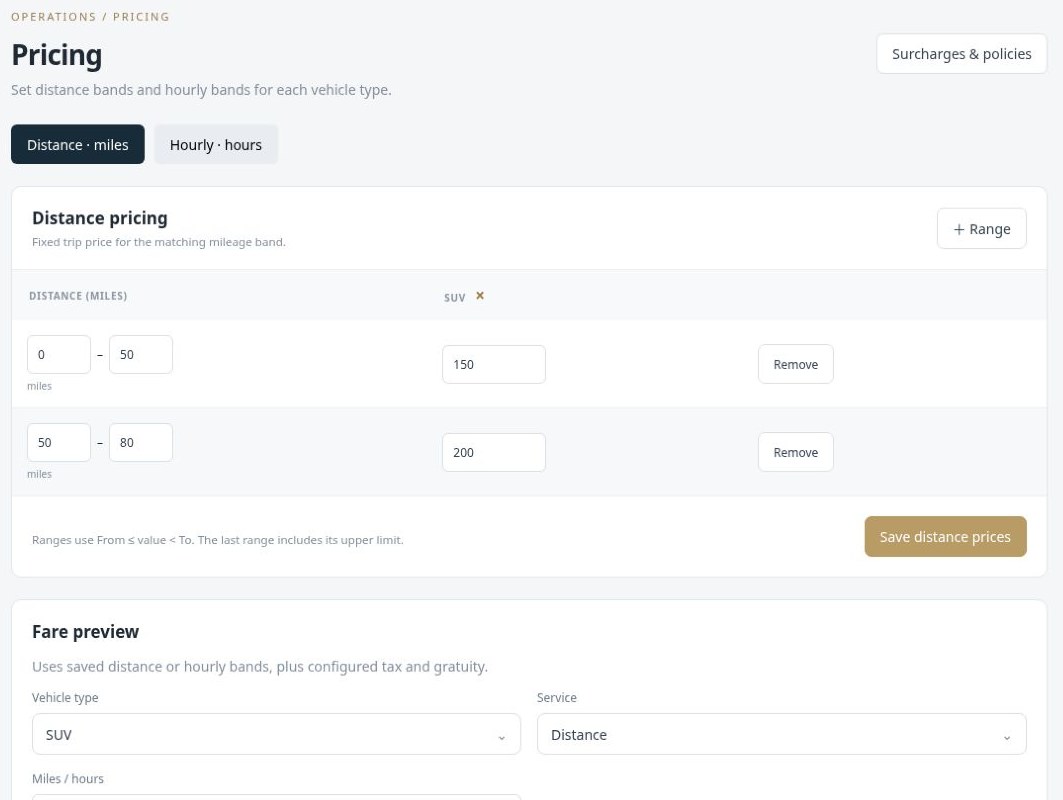
Define pricing bands by vehicle type instead of calculating each quote from memory. Distance pricing uses a fixed trip price for the matching mileage band. Hourly pricing uses the applicable hourly rate and duration. A fare preview helps your team check the saved configuration before using it for a booking.
Create From and To distance ranges and set the price for the relevant vehicle type.
Maintain hour ranges and hourly rates for services such as charters or as-directed journeys.
Use the fare preview alongside your configured tax, gratuity, surcharges and booking policies.
An SUV airport transfer can use its mileage-band price, while an hourly charter follows the configured hourly bands.
 Enlarge actual screen +
Manage promotions and customer-specific discounts through the pricing workflow. Your team can apply an appropriate coupon or customer discount after the base journey price has been calculated, helping special offers remain visible instead of living only in a dispatcher’s notes.
Keep promotional codes organized in their own module.
Manage account-specific offers for repeat or corporate customers.
Check the discount alongside the trip’s base fare and price summary before saving.
A repeat corporate customer can have a recorded discount, while a separate campaign uses a coupon entered during booking.
Coordinate reservations, chauffeurs and vehicles from the dispatch workspace. Live location sharing and journey statuses help the office understand what is happening on the road. Tracking depends on the connected driver device, location permission and connectivity; the board brings the available information into one operational view.
Assign the chauffeur and vehicle for the journey so the office and driver are working from the same booking.
Track the stages from On the Way to At Pickup, Passenger on Board and completion.
Review shared driver positions and trip progress when coordinating pickups and answering operational questions.
When a chauffeur marks arrival, dispatch can see the journey has reached the pickup stage instead of relying on a separate phone update.
The dedicated driver workspace brings assigned journeys to the chauffeur’s browser. Drivers can review upcoming and past trips, read route and pickup information, share their location and update progress during the ride. The portal connects the office workflow with the person carrying out the journey.
Review the assigned booking, route and instructions before starting the journey.
Record On the Way, arrival at pickup, Passenger on Board and Finish as the trip progresses.
Use browser location sharing with the required device permissions and connection.
A chauffeur opens the upcoming trip, checks pickup instructions and records arrival from the driver portal. Dispatch sees the updated trip stage.
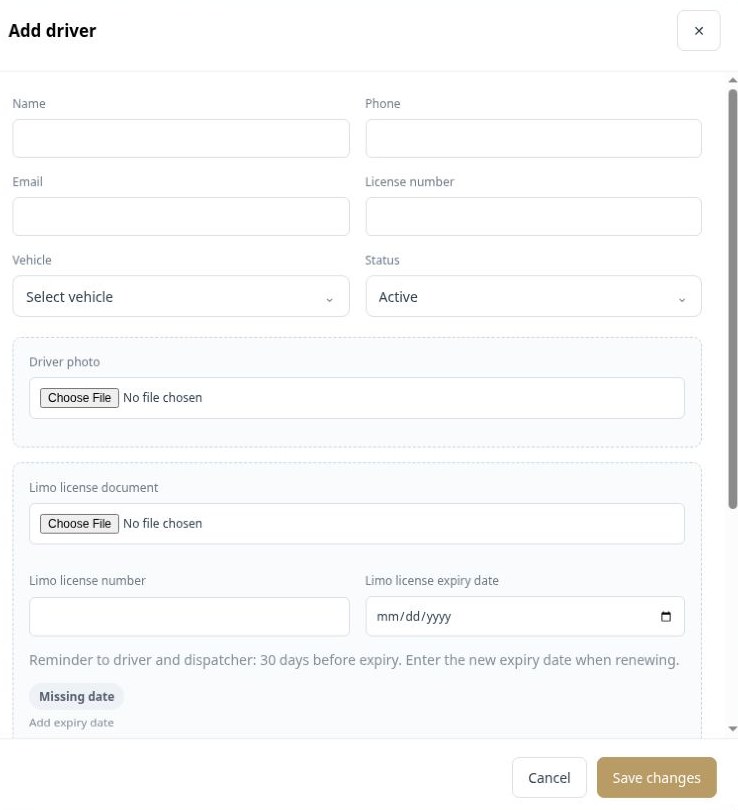
Maintain a dedicated profile for each chauffeur, including contact information, photo, vehicle assignment and license documents. Account access and pay-system configuration connect the driver record with the wider operation. License expiry information helps your team identify records that need attention.
Record the driver’s details, availability status, photo and assigned vehicle.
Store license information and supporting uploads alongside the driver record.
Configure the appropriate account role, screen permissions and driver pay system.
When a driver joins the team, the office can organize their profile, upload the license document and connect the relevant pay system.
 Enlarge actual screen +
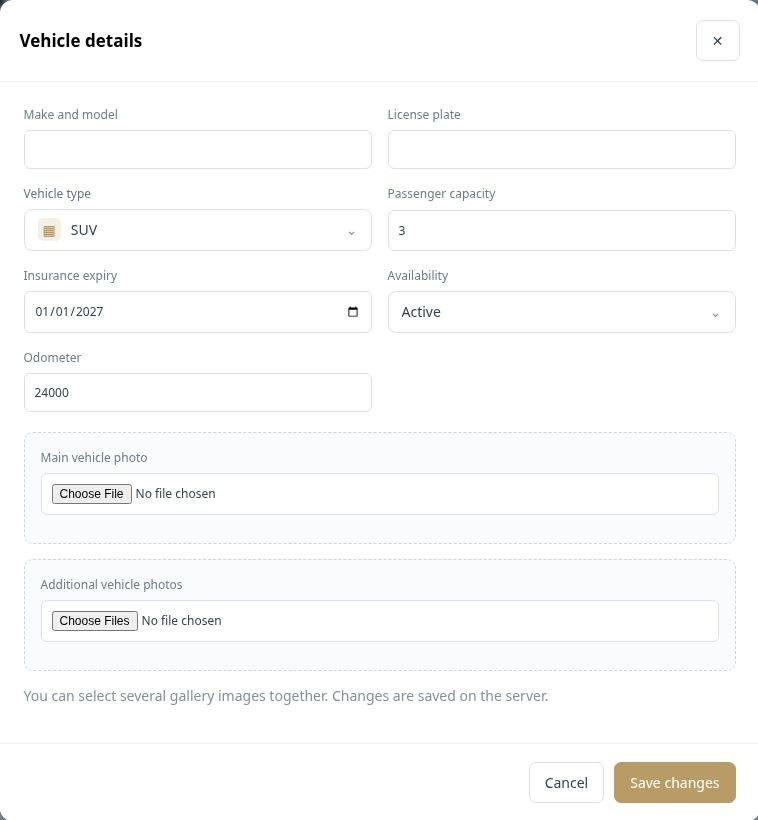
Keep vehicle information, presentation and availability in one profile. Your fleet workspace includes vehicle type, make and model, plate, capacity, insurance expiry and mileage, along with a main photo and additional images. These records support the people choosing and assigning vehicles for each journey.
Record the vehicle’s identity, capacity, type and availability so dispatch can choose the right resource.
Use a main vehicle image and a gallery for additional photographs.
Connect the vehicle with maintenance tasks, expenses and incidents as work is recorded.
A dispatcher can distinguish an active SUV from an unavailable vehicle, while the office maintains the insurance and odometer information in the vehicle profile.
 Enlarge actual screen +
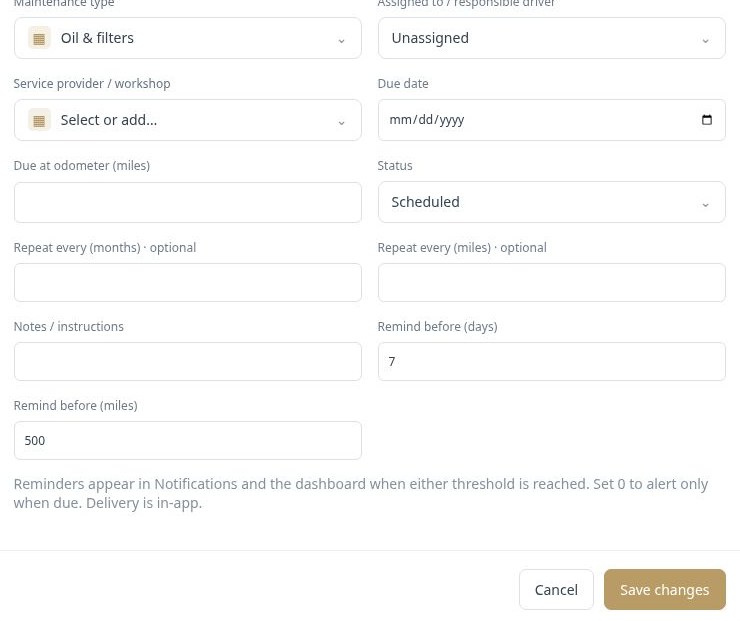
Schedule vehicle maintenance with a due date, mileage threshold or both. Assign the task to a responsible driver and service provider, add instructions and define reminder thresholds. Upcoming tasks, overdue work and completed service history help the office keep maintenance visible alongside daily operations.
Choose the vehicle, maintenance type, responsible person and workshop, then set the due date or odometer threshold.
Configure days or miles before the task is due. The current workflow displays reminders in Notifications and on the dashboard.
Track task status and completed service costs. Optional recurrence can be based on months or mileage.
An oil service can have a mileage threshold and a reminder before it becomes due, with the workshop and task instructions kept in the same record.
 Enlarge actual screen +
Record operational incidents in a structured place instead of leaving details scattered across messages. Link an incident to its reservation, keep the associated driver and vehicle context, and record the time, location, description and supporting files for later review.
Select an incident type and connect it with the relevant reservation.
Record the event’s date, time, location and description.
Attach photographs or documents so the office can review the record with its evidence.
If a vehicle issue occurs during a trip, the incident can retain the reservation link, a written description and supporting photographs.
Completion is a distinct part of the trip workflow. Record when a journey finishes and capture a passenger signature where required. Offline completion support helps preserve a completion action when the connection drops, then synchronizes it when connectivity returns.
Use the trip’s finish action so the office can distinguish active work from completed work.
Use the passenger signature workflow when the service requires a signed record.
Retain the offline completion action for synchronization when the device reconnects.
At the end of a trip in a poor-signal area, the completion workflow can be retained for later synchronization rather than depending on an immediate connection.
Keep customer and corporate account information organized alongside the work you perform for them. Contact information, referral sources, account types and special notes help the team retain context between bookings. Link the appropriate customer account to the reservation instead of rebuilding the relationship each time.
Keep the account’s details, source and special notes together.
Associate reservations with the correct customer or company account.
Use account context and customer discounts when preparing future journeys.
A corporate account’s booking notes can help your team handle repeat requests consistently, even when a different dispatcher takes the call.
Manage partner relationships in the same environment as your customers and journeys. Send and respond to company invitations, keep partner account details organized and assign work through the network workflow. This gives the office a clearer record of who is handling a journey when another operator is involved.
Manage invitations between companies and accept or decline network connections.
Use the partner company workflow for journeys handled by a connected operator.
Use partner-related reporting to understand the work and income associated with the network.
When your own vehicles are committed, the team can coordinate a journey with a trusted partner and keep the assignment connected to the operation.
Organize invoices and recorded payment information within the wider booking operation. Link commercial details with the customer and journey so the office can review the fare and payment state without relying on an unrelated spreadsheet. Payment provider features depend on the company’s configured services.
Maintain the invoice information required for customer billing.
See the recorded payment status alongside the reservation’s fare.
Keep the customer account and service information available when resolving billing questions.
After a corporate transfer, the office can review the journey’s commercial details and the associated invoice or payment record.
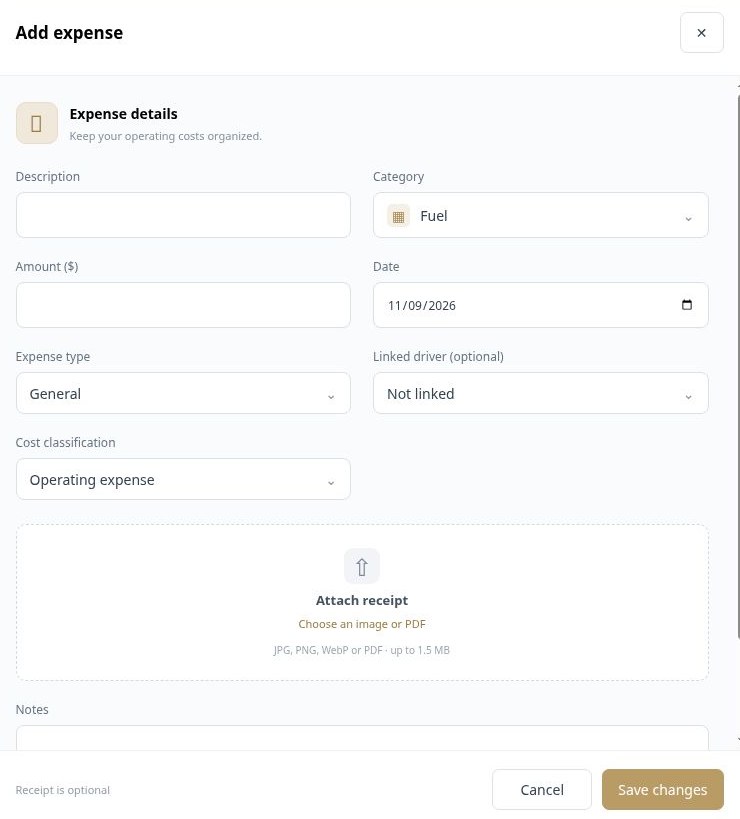
Record general operating expenses and vehicle-specific costs with a description, category, amount and date. Link a driver where appropriate, classify the cost and attach its receipt. Keeping the context with each expense helps reporting distinguish operating costs from other financial activity.
Choose the category and expense type, and connect the relevant vehicle or driver where applicable.
Attach an image or PDF receipt and add explanatory notes.
Use the cost classification so operating expenses and driver payroll payments are treated appropriately.
A fuel purchase can be recorded with its date, category, vehicle association and receipt, rather than appearing as an unexplained amount.
 Enlarge actual screen +
Configure the pay structure used for each driver and review the work behind the resulting statement. The platform includes driver pay systems, hourly calculations, tier rules and fixed salary options. External imported work has its own reporting path, helping the office account for work that did not originate as a live reservation.
Choose the driver pay system that reflects the agreed compensation structure.
Check the relevant period, journeys and pay calculations before settling the driver’s balance.
Keep payout activity separate from earned wage calculation so reports can avoid deducting payments twice.
A monthly review can bring together the driver’s applicable trip work, pay rules and recorded settlements before the office finalizes payment.
Use reports to move from individual journeys to the performance of the operation. Review driver activity, customer work, imported trips, partner income, incidents and profitability. Revenue and expense context helps the office evaluate the work being performed instead of measuring the business only by reservation count.
Open the report for the part of the operation you want to review, such as drivers, customers, partner income or imported work.
Use the report’s available date and account filters to focus on the relevant work.
Compare work, revenue and costs so unusual results can be traced back to operational records.
The office can review a reporting period to understand how driver work, partner income and operating costs contributed to the result.
Configure company information, branding, timezone and account access. Team roles and screen permissions help match the workspace to each person’s job. English, Arabic and Spanish options support multilingual operations while company settings keep the daily workflow aligned with your business.
Maintain the company profile, branding and timezone information.
Configure Admin, Dispatch and Driver roles with the appropriate screen permissions.
Use the English, Arabic or Spanish interface options provided in the workspace.
A dispatcher can receive the screens needed to coordinate work, while a driver account uses the access appropriate to its role.
The website area lets your company choose from available templates and manage its website publishing and domain configuration. Bring the customer-facing presence closer to the reservation workflow through the supported booking-form settings. Publishing depends on the configured hosting and domain setup.
Review the available website designs and select the one that suits the company.
Maintain the publishing and domain information required for the deployment.
Use the website booking settings to connect the form with the company’s workflow.
A company can choose a website template, configure its domain and connect its booking form rather than treating the website as a completely separate project.
Company integrations bring messaging and booking tools into the workspace. Configure supported email services, operational notifications and WhatsApp booking tools according to your company setup. Provider accounts and service configuration are required for the channels you choose to enable.
Maintain the email integration used by the business for supported journey messages.
Use Notifications for items such as maintenance reminders and other workflow updates.
Configure the supported WhatsApp workflow with the required provider credentials and company settings.
An assigned trip can trigger its supported assignment email once the company’s email service is configured, while maintenance reminders remain visible in the workspace.
See how the platform fits your fleet, your team and your customers.